This release brings you ready-to-use AI workflows that help teams work more efficiently. You’ll also find new add-ons and role-based access controls that allow you to safely expand AI across your organization. Plus, enhanced Microsoft and Tableau integrations help you gain deep insights from your data.
See what’s new in the Asana’s summer 2025 release below:
Deploy ready-to-use AI workflows for your teams
Smart Workflow for Campaign Management: Simplify marketing campaign requests, milestones, tasks, and budgets. AI auto-updates dates, renames tasks for clarity, and keeps campaigns on track.
Smart Workflow for Kanban: Boost IT team efficiency with a customizable board view. AI flags duplicates and missing info to keep work organized.
Smart Workflow for Goal Setting Operations: Align teams on drafting, reviewing, and sharing goals. AI ensures consistent formats and avoids duplicates for a smooth process.
Scale AI securely across your org with advanced permissions
Permissions Management Add-on: Control internal and external collaboration with detailed permissions, automated guest management, and secure app use—protecting data without limiting teamwork.
Compliance Management Add-on: Enhance security with audit tools, threat protection insights, and API integrations to safeguard against risks.
Role-Based Access Controls: Create custom roles, manage assignments, and adjust permissions from one console for streamlined, tailored access control.
Power your reporting with Microsoft and Tableau integrations
Smart Chat in Microsoft 365 Copilot: Access Asana directly in Copilot for project insights and AI-powered task prioritization.
Improved PowerBI & Tableau Connectors: * Export the right data from Asana with optimized structures for richer, more frequent business intelligence reporting.
Enhanced Reporting API: Export detailed data from portfolios, projects, and tasks to build custom BI connectors beyond PowerBI and Tableau.
PowerPoint Dashboard Exports: Turn Asana dashboards into fully editable, executive-ready PowerPoint reports with native charts.
What’s your favorite update from this release? Vote in the poll below and let us know what stands out to you!
Thanks to those of you who were able to attend our event live yesterday! In case you missed it or want to relive the magic, you can now watch the recording below:
Below are the answers to the most asked questions during the webinar, as well as a few we didn’t have a chance to address via Q&A. Let us know in the comments if you have any questions about the event. Feedback about the product and features themselves can be posted in the Product Feedback category in the Forum.
Pricing
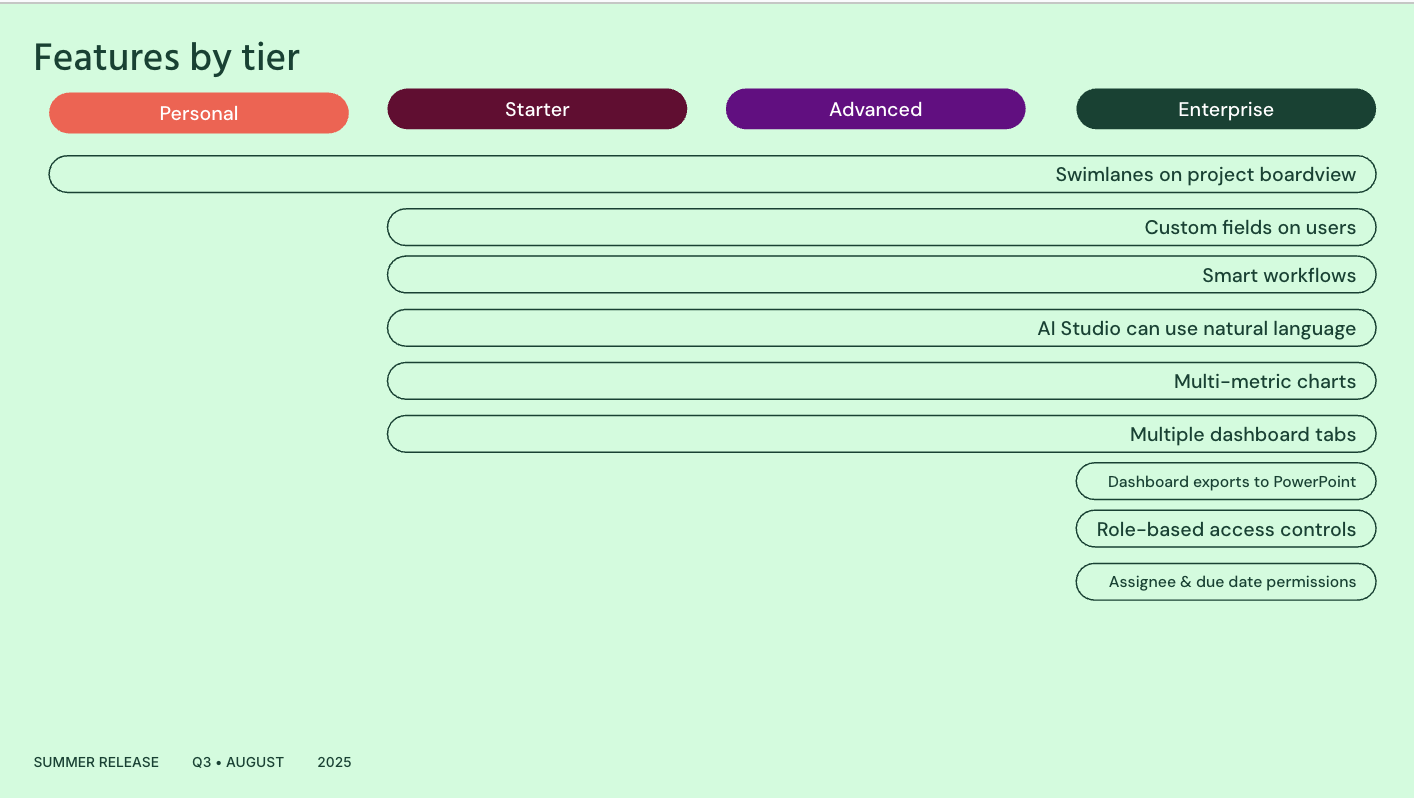
Which features discussed during the webinar correspond to which tiers?
How do AI Studio credits work, and where can I learn more about the cost of AI Studio? AI Studio rules and workflows consume credits, and the amount varies based on the complexity and volume of data being processed. There isn’t a way to get a precise estimate of how many credits a rule will use before it runs, but the cost is based on factors like the amount of data input and output. Check out this Help Center article where you can learn more about credits, credit consumption, rate limits, and model pricing.
Is AI Studio included in all Asana tiers? Starting in June 2025, AI Studio Basic is automatically provisioned in paid domains using Asana AI, eliminating the need for customers to enable individual AI Studio builders.. It’s available in our Starter, Advanced, and Enterprise plans. It isn’t available for users on legacy (e.g. Business) plans though.
Are swimlanes only available in projects? Swimlanes are available in projects and My Tasks, helping you to track progress of your own personal tasks based on the categories you’ve established. Look for the Group By options in your Board view settings on both Projects and My Tasks. You’ll be able to select both column and row grouping options.
Which fields can I use to create swimlanes? Currently, you can create rows using Sections, Assignees, and Single-Select Custom Fields - the same fields supported in Group By on Board today. We plan to expand field coverage based on your feedback!
Will this work with hide empty groups? Yes! Just like our existing Group By functionality, you can hide empty groups to keep your board view clean and focused.
Smart workflow gallery
How do I find and use the Smart Workflow Gallery? Navigate to “Templates” when creating a new project. You’ll see a curated list of prebuilt AI workflows like request tracking, creative intake, and ticketing. Choose one and follow the guided setup.
Can I customize workflows from the Smart Workflow Gallery? Yes, each smart workflow is fully customizable. You can update intake forms, task types, statuses, and add automation rules to fit your team’s process.
What kinds of teams benefit most from using the Smart Workflow Gallery? It’s great for any team that handles structured processes, especially marketing, IT, PMO, and ops teams managing tickets, creative requests, or approvals.
Are new templates added to the gallery regularly? Yes, more templates are rolling out over the coming months for key team use cases across organizations.
Multiple dashboard tabs
Will the dashboard tabs I create after the first one be populated with charts? No, for any dashboard tab you create after the first one, the dashboard will appear empty. This means you do not have to remove any unneeded charts 1 by 1.
Does the limit of 20 charts per project still apply? No, you can now add more than 20 charts across multiple dashboards (or tabs) with this release. We recommend organizing your dashboards by audience, objective, or another focus area to make finding the right dashboard easier.
Can you have multiple dashboards in a portfolio? No; currently, the ability to create multiple dashboard tabs is only available for projects. We’ll pass along the feedback to our product team for future improvements!
Dashboards exports to PowerPoint
Can I export both list and dashboard views in the same PowerPoint? Yes, you can select which views you’d like to include when exporting your portfolio to PowerPoint.
Do the exported charts update automatically? No, the PowerPoint export is a snapshot of your portfolio at the time of export. You’ll need to generate a new export to reflect any updates.
Is there a limit to how many dashboard widgets I can export? The export will include all visible charts from your selected dashboard view, subject to the overall 20-project limit per portfolio. We don’t have plans to increase this limit for now.
Can we create a template for our PowerPoint exports so the exports are always formatted the same way? No, you will need to export the dashboard, then make any formatting changes. However, you can specify upon exporting to PowerPoint which Asana objects you would like to include or exclude.
AI Studio using natural language
Will this be available in My Tasks? We don’t have immediate plans to implement this in My Tasks, but it’s on our team’s radar!
Assignee and due date permissions
Is there a way to place edit restrictions on task descriptions without demoting project members to comment-only project permissions? Today, you can only place restrictions on the task due date and assignee, not the task description. However, we’ll keep this request in mind for the roadmap!
Multi-metric charts
How many metrics can be added to a single chart? You can compare up to 4 metrics on a single chart. Common use cases include: comparing actual time vs alllocated time to support resouire planning, comparing actual spend vs budgeted spend, and comparing completion time versus estimated time to support operations or performance analysis.
Custom fields on users
Where do I find and manage these user custom fields? These fields are created and managed within the “Members” tab inside specific Teams.
Can I use these fields to automatically calculate project costs? Not directly in this initial version. While you can create a field for hourly rates, the functionality to compute costs automatically is planned for the future.
What’s the difference between field permissions and value restrictions? Field permissions (set via the column header) control who can see or edit the field structure itself. Value restrictions (set in Team Settings > Advanced) control who can change the values assigned to users for that field, even if they can see the field.
Why can’t I add or edit fields on some teams? Permissions might be restricted. The ability to add or manage custom fields on the Members tab can be limited to “Team admins only” via a setting in Team Settings > Advanced. You also need standard permissions to edit team settings.